How to Boost FPS and Reduce Lag in Any Game (2025 Optimization Guide)
In 2025, smooth gaming performance is more accessible than ever—but only if you know how to fine-tune your setup. Whether you’re playing on a PC, console, or cloud platform, optimizing your system for higher FPS (frames per second) and reduced lag can dramatically improve your gameplay experience.
This guide breaks down practical, tested methods for improving performance across all gaming platforms.
What Are FPS and Lag?
- FPS (Frames Per Second): The number of frames your system renders per second. Higher FPS equals smoother gameplay.
- Lag: There are three main types:
- Input Lag: Delay between pressing a button and seeing the action on screen.
- Network Lag: Caused by slow or unstable internet connection (high ping).
- Performance Lag: Low FPS or stuttering due to system limitations.
How to Increase FPS on PC (Windows/Linux)
1. Update GPU Drivers Regularly
GPU manufacturers like NVIDIA, AMD, and Intel release frequent updates that can improve game performance significantly.
- Use tools like GeForce Experience (NVIDIA) or Adrenalin Software (AMD).
- These updates often include performance patches for new game releases.
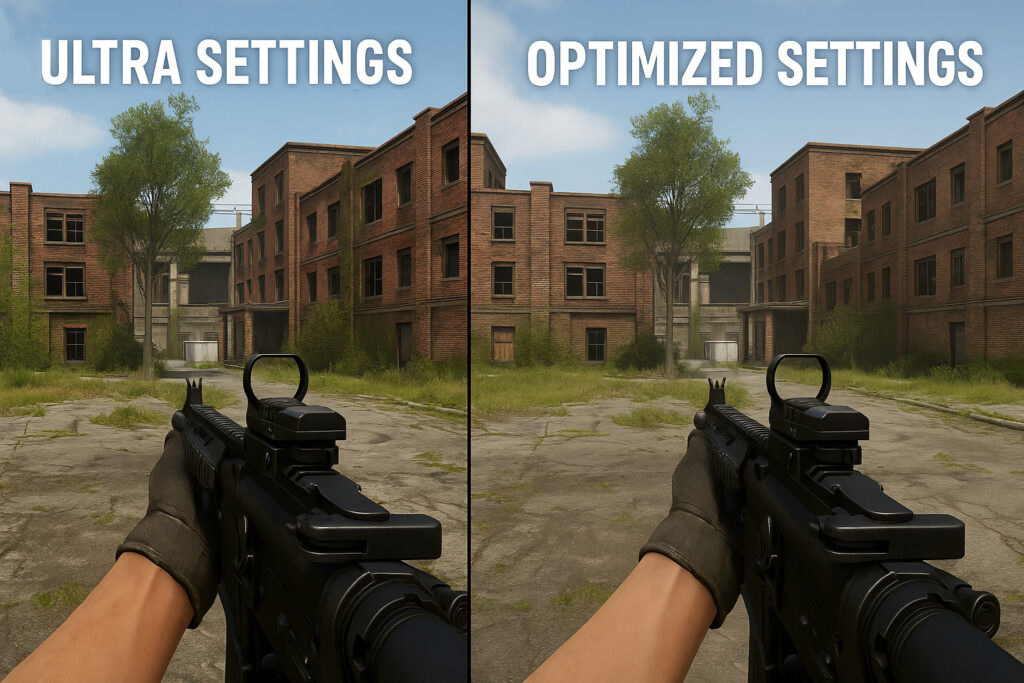
2. Optimize In-Game Graphics Settings
Adjusting a few graphics options can lead to massive FPS improvements. Focus on:
| Setting | Performance Impact | Recommendation |
|---|---|---|
| Shadows | High | Set to Low or Off |
| Anti-Aliasing | Medium | Use FXAA or disable |
| Ambient Occlusion | High | Turn Off |
| Texture Quality | Medium | Set to Medium |
| Post-Processing | Medium | Reduce or disable |
3. Enable Hardware-Accelerated GPU Scheduling (Windows 10/11)
- Navigate to Settings > System > Display > Graphics Settings
- Turn on Hardware-accelerated GPU scheduling
- This reduces rendering latency and stabilizes performance
4. Close Background Applications
Use Task Manager to end unnecessary tasks:
- Web browsers (especially Chrome)
- Game launchers
- Streaming services
- Unused overlays or recording software
5. Set Games to High Performance in Windows
- Go to Graphics Settings > Browse > Add your game executable > Options
- Select High Performance
6. Use Performance Tools
- Razer Cortex: Frees RAM and disables background apps
- MSI Afterburner: Monitor and adjust GPU performance
- Process Lasso: Optimizes CPU core allocation
Reducing Network Lag (Ping, Packet Loss, and Jitter)
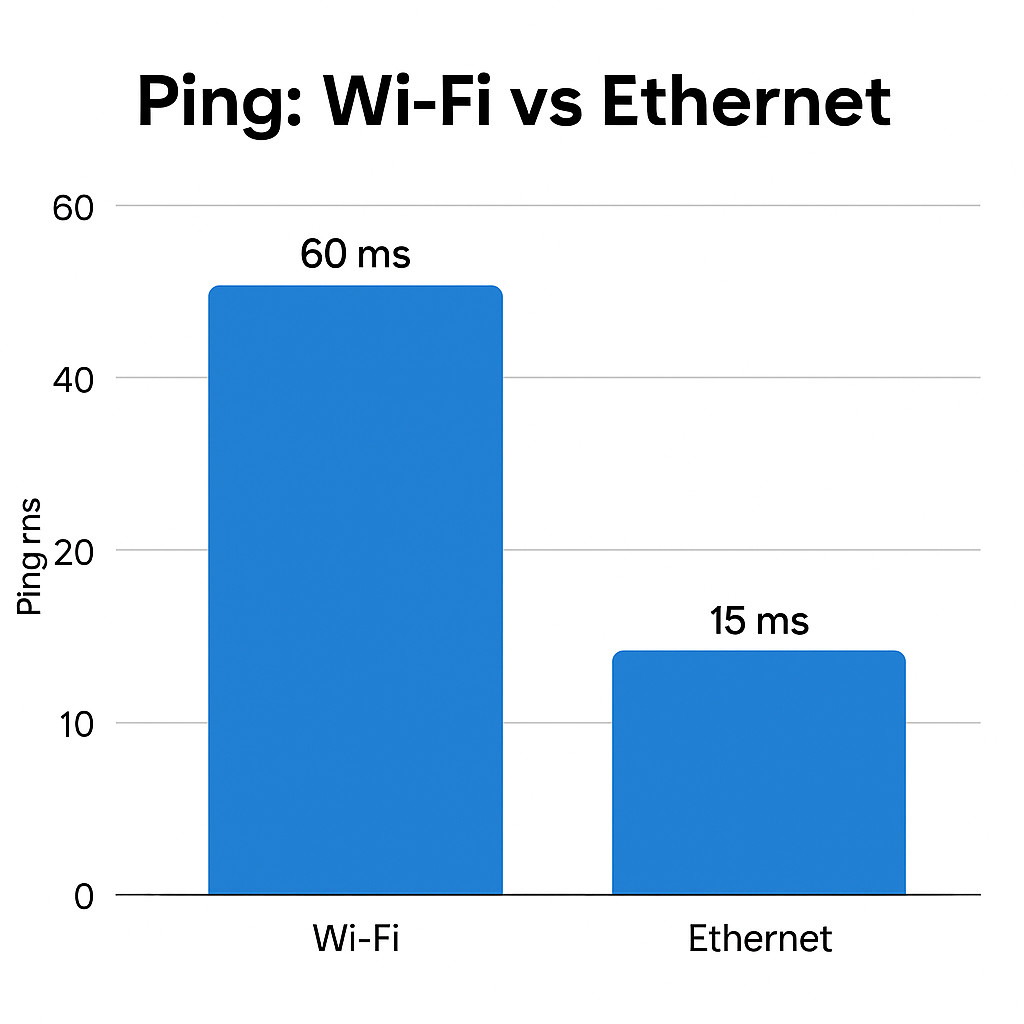
1. Use Ethernet Instead of Wi-Fi
A wired connection reduces latency, packet loss, and ping fluctuations dramatically. If possible, use a Cat 6 or Cat 7 Ethernet cable.
2. Optimize DNS Settings
Faster DNS can reduce the time it takes to connect to game servers:
- Google DNS:
8.8.8.8/8.8.4.4 - Cloudflare DNS:
1.1.1.1 - Use tools like DNS Benchmark for the fastest option in your area
3. Try a Gaming VPN (Where Applicable)
Gaming VPNs like ExitLag, NoPing, or WTFast may:
- Reduce ping by routing through better paths
- Stabilize jitter
- Bypass ISP throttling
Note: This works best if your ISP is known to limit traffic to gaming servers.
4. Limit Other Bandwidth Usage
Ensure no other devices are:
- Streaming high-resolution video
- Uploading large files
- Running cloud backups
Console Optimization Tips (PS5, Xbox Series X|S, Switch)
1. Enable Performance Mode
On PlayStation 5 and Xbox Series X|S:
- Navigate to Game/App Settings > Game Presets > Performance Mode
- This setting prioritizes higher framerate over graphical fidelity
2. Keep Firmware and Games Updated
Patches often include:
- Frame pacing fixes
- Bug fixes
- GPU optimizations
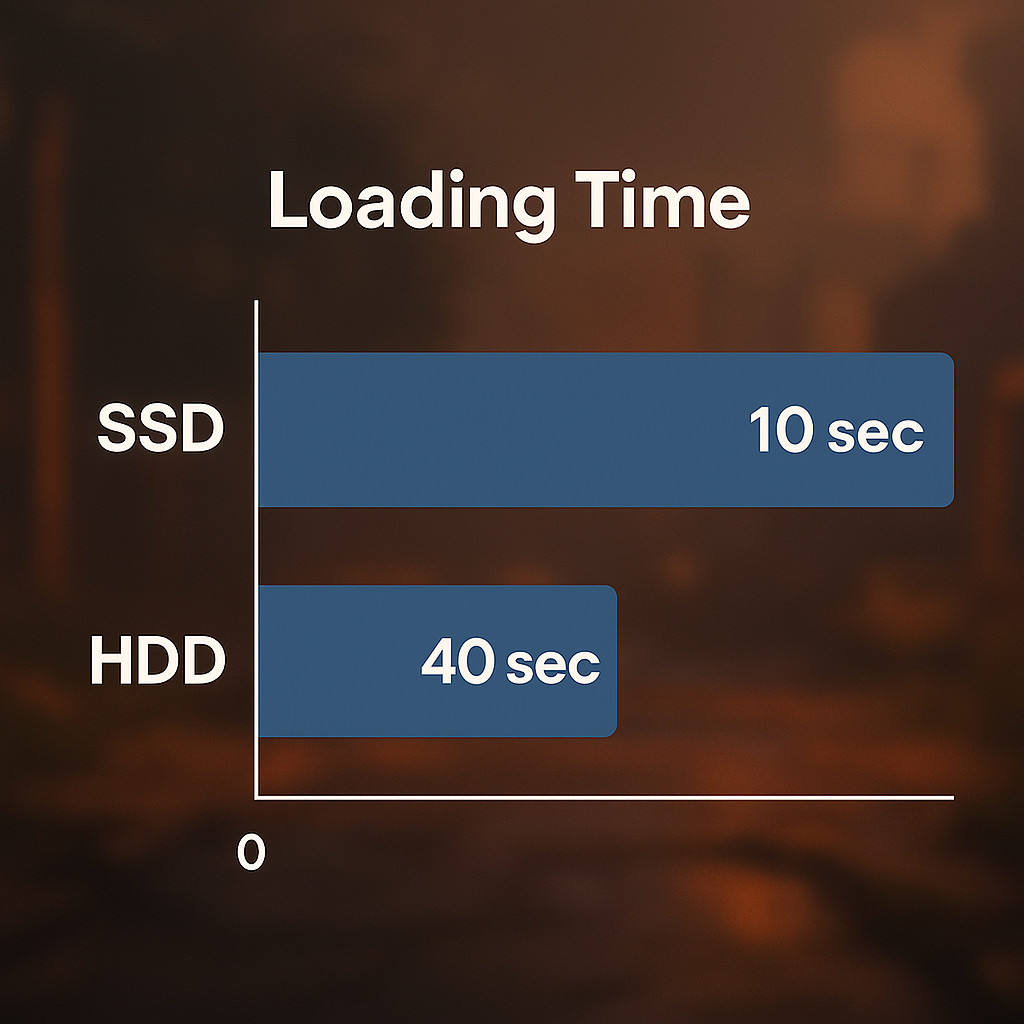
3. Use SSD Storage for Games
Using the console’s built-in SSD—or an approved external SSD—reduces loading times and improves data streaming during gameplay.
Optimizing for Cloud Gaming Platforms
Cloud gaming services like GeForce NOW, Xbox Cloud Gaming, and Amazon Luna are improving, but performance still depends on your local setup.
1. Use Wired or 5GHz Wi-Fi
A 5GHz Wi-Fi connection or direct Ethernet is essential to reduce stutters and latency.
2. Close Competing Devices and Apps
Avoid using other devices for video streaming or large downloads while cloud gaming.
3. Adjust Stream Quality Settings
Lowering resolution reduces bandwidth usage:
- 720p: Requires 15 Mbps
- 1080p: 25 Mbps
- 4K: 45 Mbps minimum
Many cloud gaming services allow manual bitrate and resolution control for more stable performance.
Advanced Optimization Techniques
For users who want to push their system further:
- Undervolting the GPU: Helps maintain consistent performance at lower temps
- Resizable BAR (ReBAR): Enable in BIOS and drivers to unlock extra performance
- DLSS / FSR: AI-based upscaling tools that increase FPS without visual quality loss
- Windows Game Mode: Prioritizes resources for gaming sessions
Summary: Optimization Checklist
| Platform | Quick Wins |
|---|---|
| PC | Driver updates, in-game tweaks, background app cleanup |
| Console | Enable performance mode, SSD installation, stay updated |
| Network | Use Ethernet, fast DNS, reduce background traffic |
| Cloud | Stable 5GHz or wired connection, lower resolution, minimal network usage |
Frequently Asked Questions (FAQ)
What is the best FPS setting for competitive gaming?
Most competitive players aim for at least 120 FPS with a 120Hz or 144Hz monitor for smoother input response and motion clarity.
How much FPS is “good enough” for casual gaming?
For casual play, 60 FPS is considered smooth and visually comfortable, especially on consoles and single-player games.
Does more RAM improve FPS?
It can—16GB is the current recommended minimum for gaming in 2025. Games like Hogwarts Legacy or Cyberpunk 2077 may stutter with only 8GB.
Will a better internet speed improve FPS?
No. Internet speed (download/upload Mbps) affects latency and ping, not frame rate. FPS is determined by your hardware (GPU/CPU).
Is using a VPN for gaming safe?
Yes, if you choose a reputable gaming VPN. It can improve routing in some cases, but results vary based on your ISP and location.
Do consoles ever drop frames?
Yes. Even PS5 and Xbox Series X games sometimes experience frame dips, especially in open-world or graphically intense titles. Enabling performance mode helps reduce this.


Post Comment